
Object Properties
[TL, CF, COM, T]
Create a new drawing.
Every object you draw has a set of inherent properties including layer, linetype, lineweight, and plot style. In Drafting 10, we will only concern ourselves with the layer, linetype and lineweight properties.
There are two ways that objects (such as lines, circles, etc.) acquire properties:
All objects in AutoCAD LT are drawn on layers. You can make objects visible or invisible by turning their layers on and off. You can associate the color, linetype, and other properties of an object with its layer, or you can set them explicitly for the object.
Creating Layers
You can create and name a layer for each conceptual grouping (such as object lines, dimension lines, or hidden lines) and assign common properties to those layers. By grouping objects into layers, you can control their display and make changes quickly and efficiently.
| Consider the following drawing (made up of 3 layers - object, dimension, and hidden lines). | 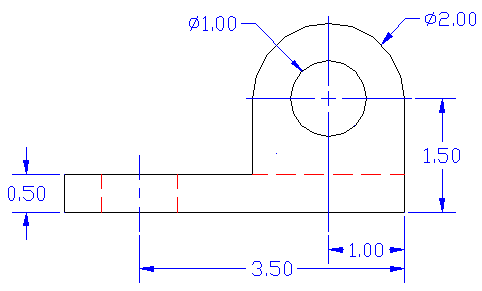 |
| Same object with dimension layer turned off. | 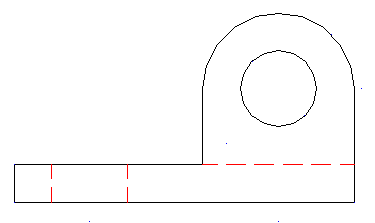 |
Same object with dimension and hidden layer turned off. |
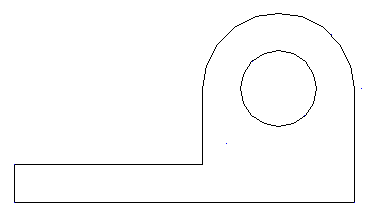 |
The number of layers you can create in a drawing and the number of objects you can create per layer are virtually unlimited. Layers are usually dedicated to each conceptual grouping (such as object lines or dimensions). Layers can have alphanumeric names up to 255 characters long. In many cases, the layer names you choose are dictated by corporate, industry, or client standards.
The Layer Properties Manager sorts layers alphabetically by name. If you're organizing your own layer scheme, name layers carefully.
Let's try creating some layers.
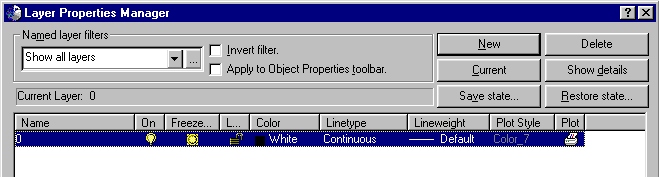
Select the Layers button on the Object Properties toolbar.

By default, AutoCAD creates a layer with name '0'. If you start drawing objects without creating any additional layers, all drawing objects will be assigned to this layer.
As demonstrated above, the creation of layers allows the designer to toggle layers on and off. In addition, by assigning objects to a layer, the designer can change the properties of all objects within a layer in one fell swoop without having to change each objects properties individually.
When creating layers, the base properties for the layer should apply to all objects within the layer. In most cases, the base properties will be a specific color or lineweight. In other cases, the base properties may also include linetype. By placing an object into a specific layer does not confine you to that layers' properties. Any additional properties assigned to an object (such as a line) within a layer become the properties of the object and not the layer (even if the properties contradict the layers properties).
For example, if you assign a solid line (linetype) and color blue to the dimension layer, this does not mean that all dimensions must be solid and blue in appearance. By default, any objects you create within this layer will have those properties. However, you could select a dimension object and change the objects' color and linetype. The object still belongs to the dimension layer. However, the object's properties supercede the layer properties.
Click on the New button.
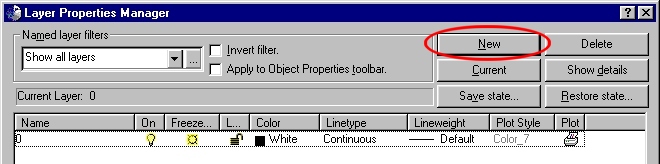
Indicated below is a brief description of layer settings that can be applied:
Try creating the following Layers set to the indicated properties.
| Name | Color | Linetype |
| Title Block | black | solid |
| Object | black | solid |
| Hidden | red | hidden |
| Dimension | blue | solid |
| Construction | green | dot2 |
Leave properties not listed at their default settings.
When done, close the Layers property manager.
Changing and Drawing within Layers
To change the current layer, click on the layers drop down list and choose the layer you wish to use.
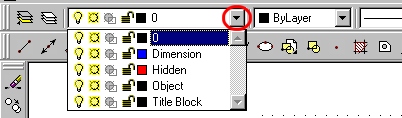
Make sure that the color, linetype, and lineweight options are set to ByLayer (see below).

Anything you draw from that point on will belong to and take on the properties for that layer.
Overriding Layer Properties
If you wish to override the properties for an object, you can select from any of the other drop down lists within the Object Properties toolbar.
The drop down lists enable you to change the object color, linetype and lineweight. If you do change one of the above 3 settings, all objects drawn after that point will take on the new properties. Any properties in addition to the current layer properties become the properties of the object and not the layer. If you wish to return to the default layer properties, simply change the above three items to the ByLayer setting.
